Connect Prodlog to Claude and other AI assistants
Log entries from the chats you’re already having. Paste one URL into your assistant, sign in to Prodlog, and say “log that”.
What it does
Your assistant gets a few tools that read and write your Prodlog log.
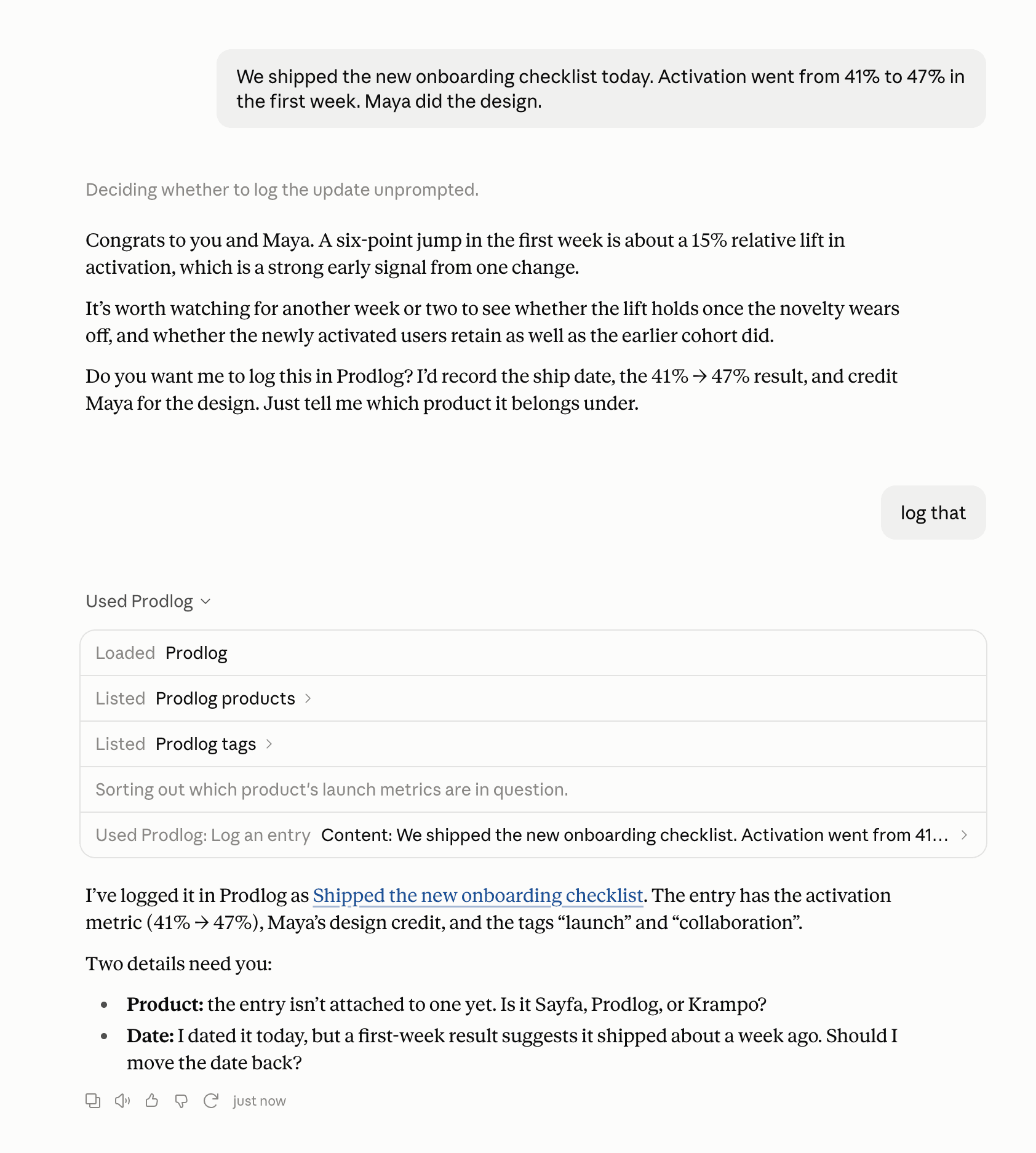
Say “log that” and it logs an entry in your words, with the numbers you stated and a link to open it.
Ask what you logged about something, and it looks it up.
What your assistant can do
| Ask it to | Tool |
|---|---|
| Log an entry: a title, what happened, the date (a day, a month or just a year), any numbers you stated, tags and the product. | create_entry |
| Find entries by words, tags, dates or product. | list_entries |
| Open one entry in full, with a link to it in Prodlog. | get_entry |
| Edit an entry you already logged. | update_entry |
| See your tags, so new entries reuse them. | list_tags |
| See the products you’ve worked on. | list_products |
| Set up a new product. Prodlog tells it to ask you first. | create_product |
| Edit a product’s details. | update_product |
What it can’t do
- Delete entries. You delete in Prodlog.
- Generate summaries, review drafts, resume bullets or STAR stories. Those stay in your dashboard.
- Ask collaborators for a confirmation, or change your portfolio.
It lands in your log
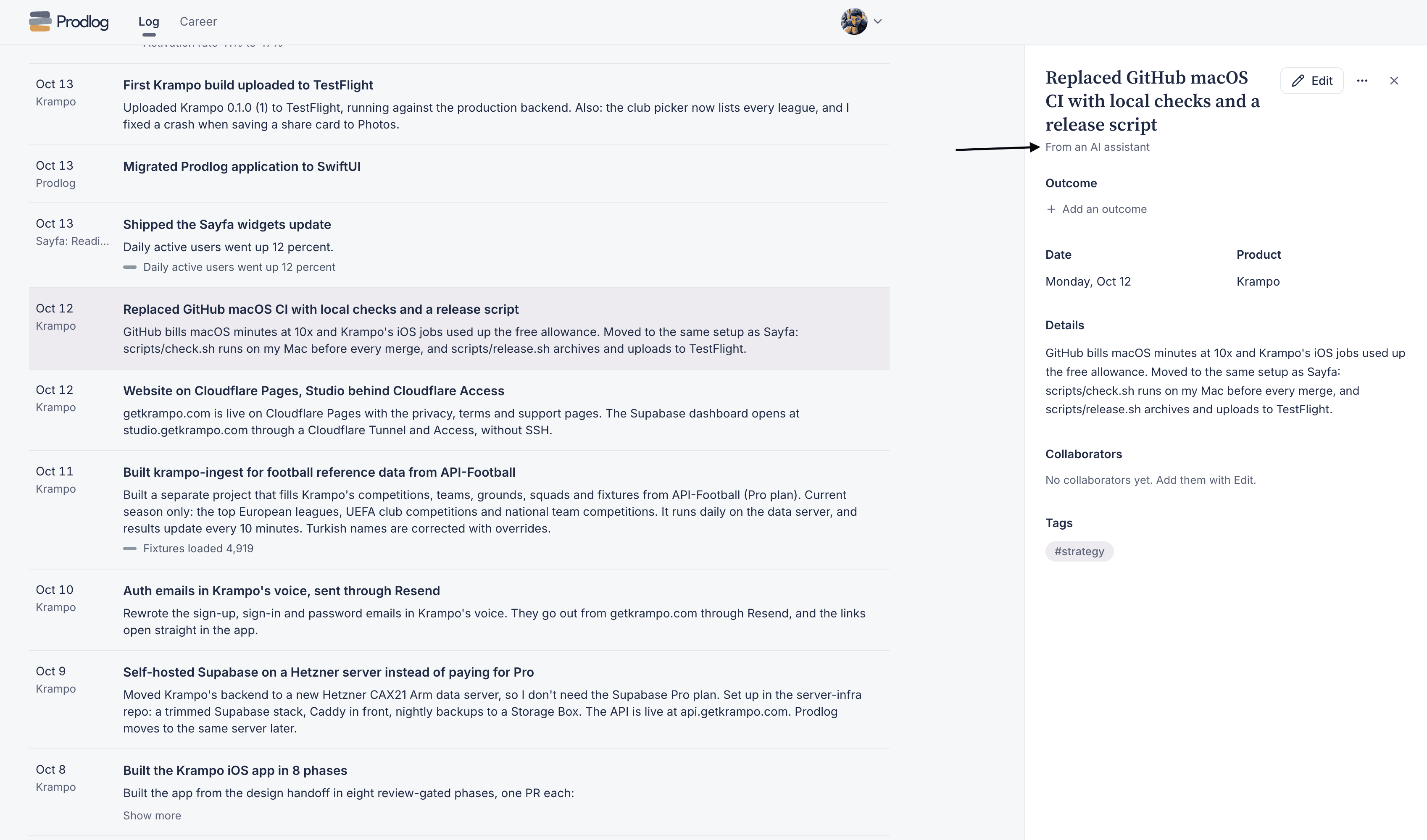
Everything it logs is in your Prodlog log, marked “From an AI assistant”, with the date, product and tags. Open it there to read it, edit it or fill in its outcome.
The server URL
Every assistant needs this one URL. There’s no key or token to copy: you sign in to Prodlog and click Allow.
https://api.prodlog.app/mcpClaude, on the web and desktop
Set up Prodlog once as a custom connector and it works in every chat.
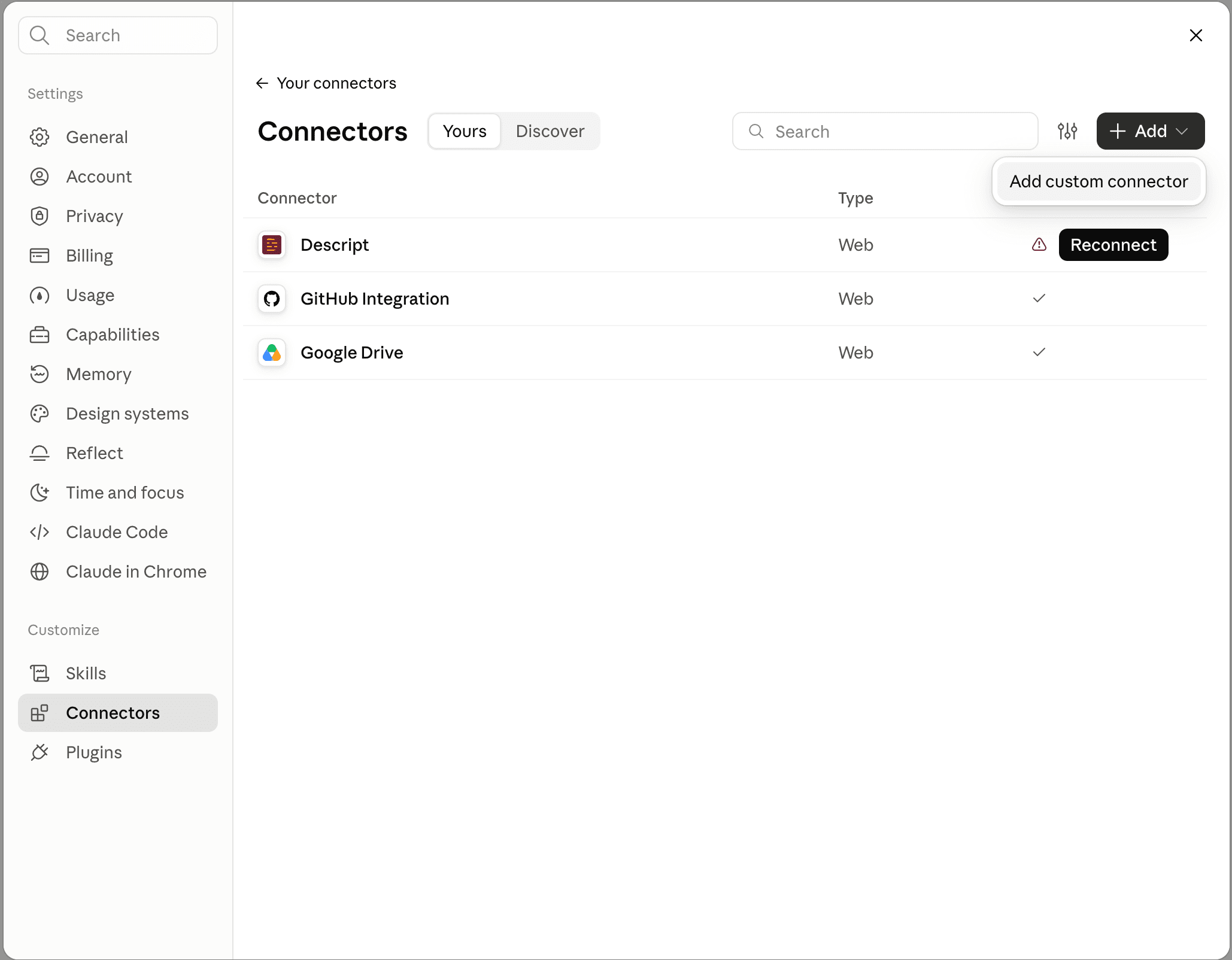
Open Connectors in Settings
In Claude on the web or in the desktop app, open Settings, then Connectors. Click Add, then Add custom connector.
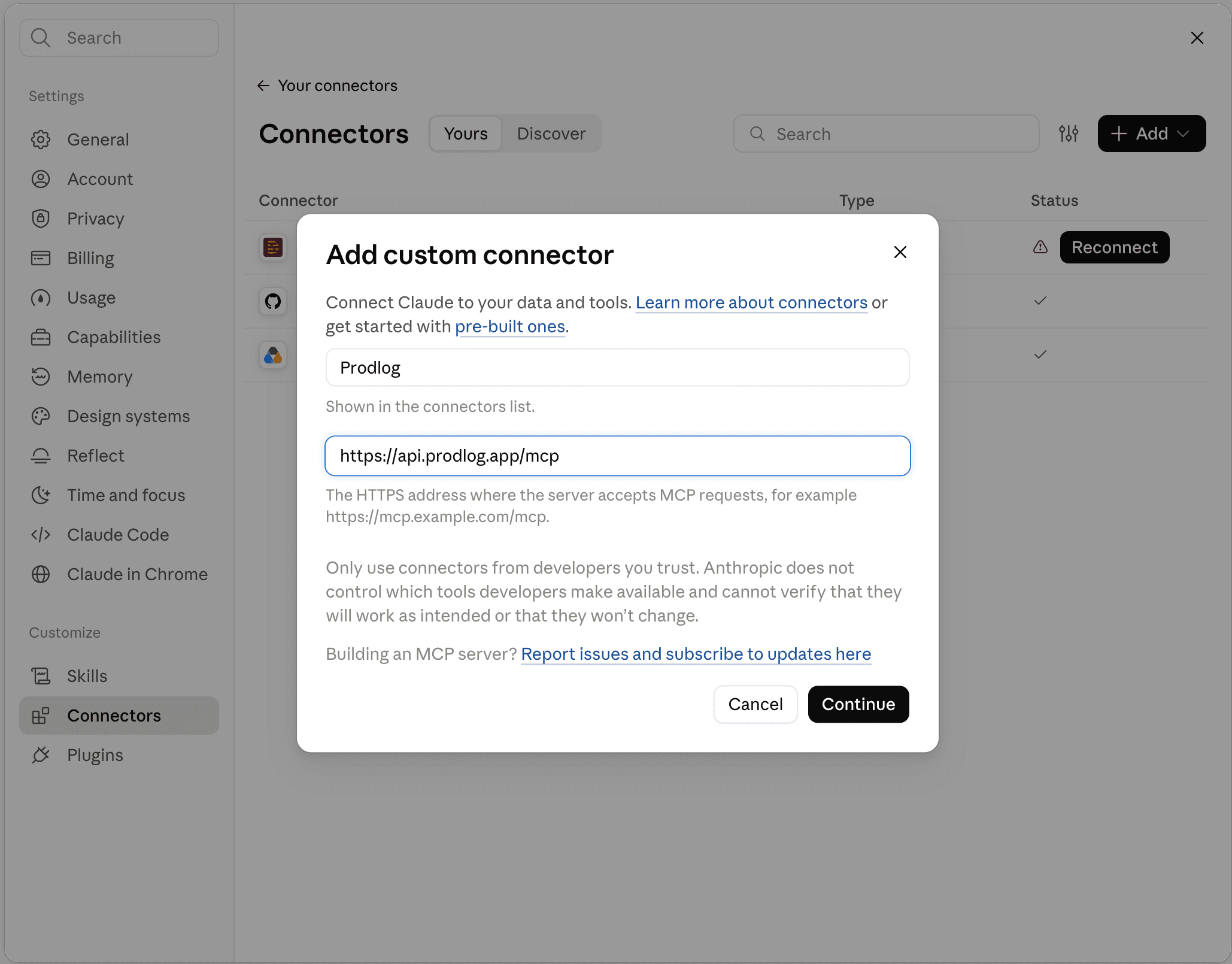
Paste the server URL
Name it Prodlog, paste https://api.prodlog.app/mcp and click Continue.
Sign in to Prodlog and allow it
Claude sends you to Prodlog. Sign in if you need to, check what the assistant will be able to do, and click Allow. You come back to Claude, connected.
Choose when Claude asks first
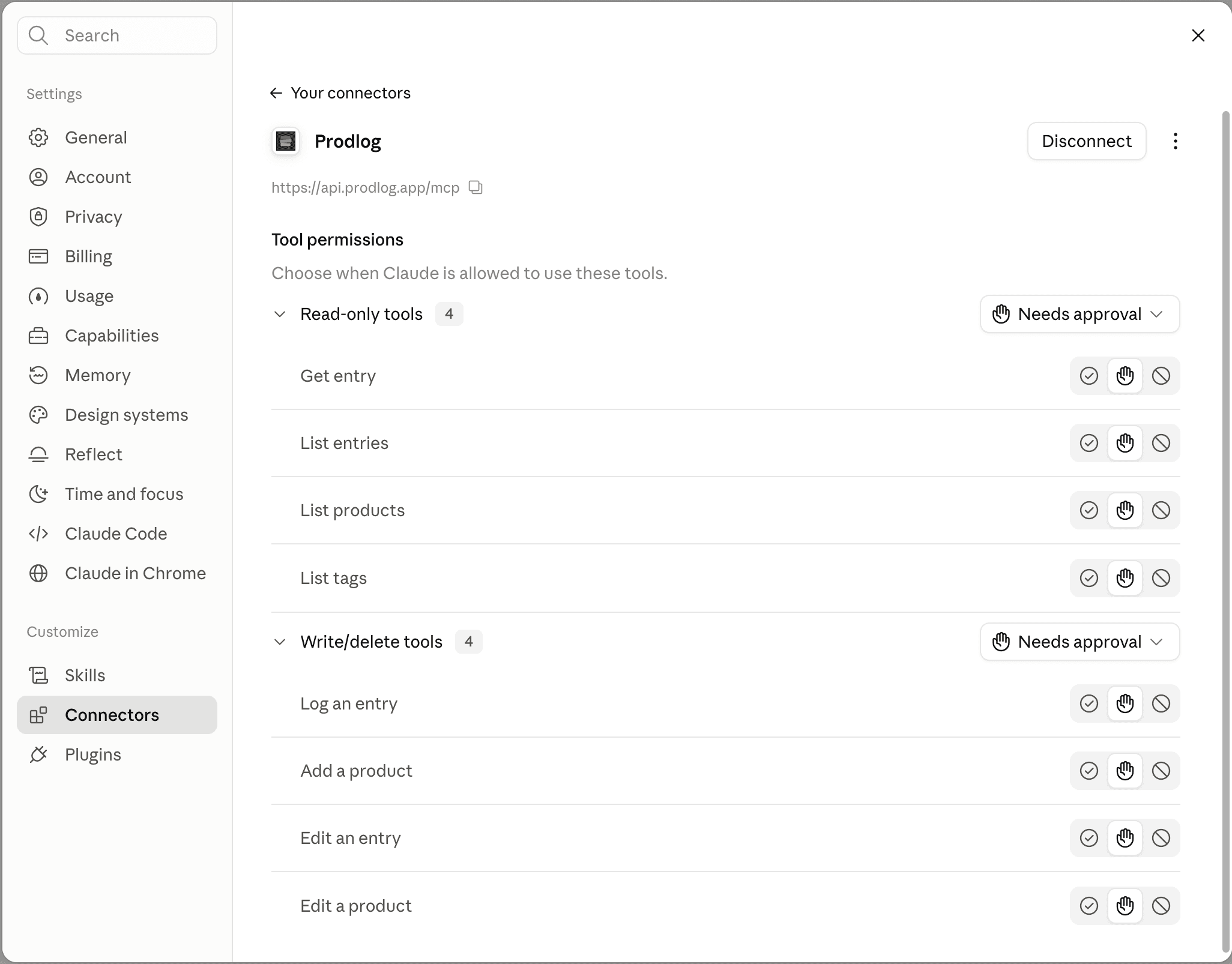
Prodlog is in your connectors with its eight tools. For each one, choose whether Claude can use it right away or asks you first.
Claude files four of them under “Write/delete tools”. That’s Claude’s own heading: none of Prodlog’s tools delete anything.
Say “log that”
Tell Claude about something you shipped, decided or measured, then say “log that”. It replies with a link to the new entry in Prodlog.
Claude Code
In your terminal, run:
claude mcp add --transport http prodlog https://api.prodlog.app/mcpThen start Claude Code, run /mcp, choose prodlog, and sign in to Prodlog in the browser window that opens.
Put --scope user after add to use Prodlog in every project, not only the current one.
ChatGPT
ChatGPT’s menus change often, so these steps describe what to do rather than where to click.
Turn on developer mode
ChatGPT connects to remote MCP servers as custom connectors in developer mode. Turn it on in ChatGPT’s settings. It isn’t on every ChatGPT plan.
Create a connector
Name it Prodlog, paste https://api.prodlog.app/mcp and choose OAuth for authentication.
Sign in to Prodlog and allow it
ChatGPT sends you to Prodlog. Sign in, check what the assistant will be able to do, and click Allow.
Turn it on in a chat
Turn on the Prodlog connector in the chat where you want to use it, then say “log that”.
Other MCP clients
Any app that supports remote MCP servers can connect. Look for the option to connect a remote server, sometimes called a custom connector.
- URL: https://api.prodlog.app/mcp
- Transport, if it asks: streamable HTTP (not SSE).
- Authentication, if it asks: OAuth. You sign in to Prodlog and click Allow.
Log every Friday, without you
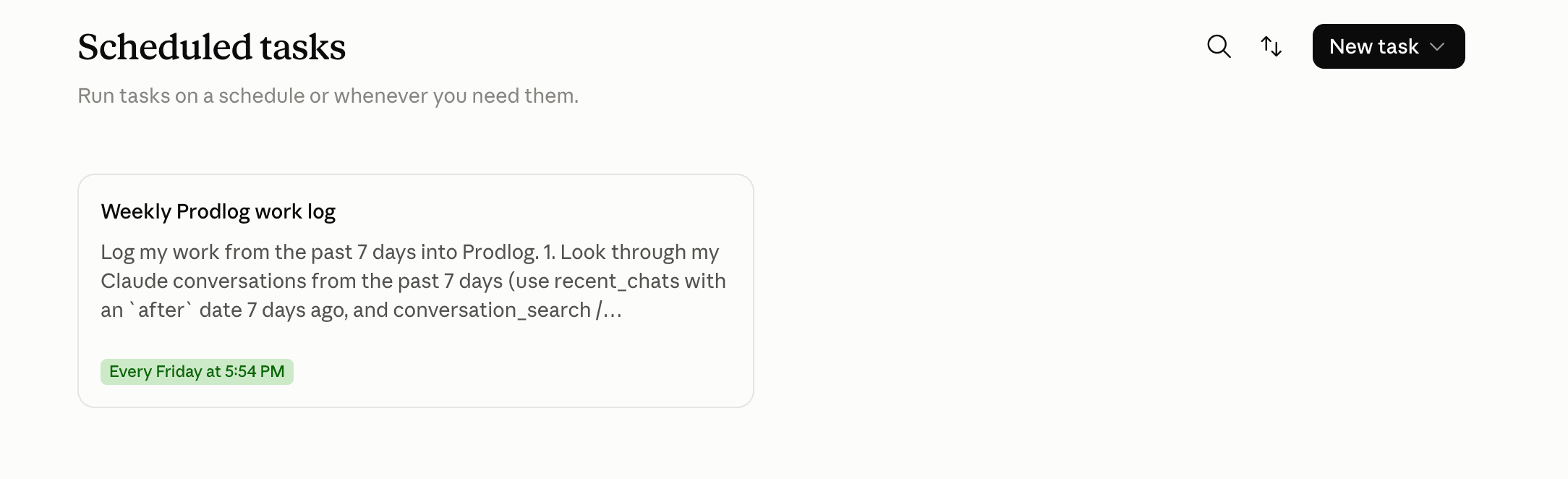
Give your assistant a scheduled task: once a week it looks back over your conversations and logs entries automatically. Your assistant needs to be able to read your past chats, and scheduled tasks use the connectors you’ve already set up.
Create a scheduled task
In the Claude desktop app, open Scheduled in the sidebar, click New task, then Set up manually.
Paste the prompt and pick Friday
Give it a name, paste the prompt below, and set it to run weekly on Friday afternoon.
Check what it logged
Each run ends with a list of what it logged, and every entry is in your Prodlog log, marked “From an AI assistant”. Edit anything it got wrong there.
The prompt
Works in any assistant that can run a prompt on a schedule with its connectors.
Look through my conversations from the past 7 days. Find things I shipped, decided, unblocked or measured at work. Before logging, call list_tags and list_products and reuse them. Log one entry per item in my own words, with the date it happened. Only include numbers I actually stated. Skip anything already in my Prodlog for this week (check with list_entries). At the end, list what you logged.
Prompts to try
Say them at the end of a conversation, or start a new chat with one.
Log that.
Log what we decided in this chat.
What did I log about onboarding last quarter?
Tag this week’s entries with Q4.
Add the metric we just discussed to my last entry.
Questions
Is my data shared with the AI provider?
Only what your assistant reads through Prodlog’s tools, when you ask it to or when a scheduled task you set up runs. Nothing is sent on its own. What it reads becomes part of that conversation, under your assistant’s own terms.
Can it delete entries?
No. There is no tool that deletes anything. It can edit an entry when you ask, and you can open any entry in Prodlog to check it. To delete an entry, do it in Prodlog.
Will it make up numbers?
Prodlog tells every assistant to save entries in your words and to log a number only if you said it, never an estimate. Each entry links back to Prodlog, so you can check it.
Does it cost anything?
Not on Prodlog’s side. Connecting an assistant and logging through it works on every plan, including Free, and entries are unlimited. Your assistant may need a plan of its own that allows custom connectors.
How do I disconnect?
In Prodlog, open Settings, then Connections, and click Disconnect next to the assistant. It has to be allowed again before it can reach your log. You can also remove Prodlog from your assistant’s connector settings.
Will it duplicate entries?
Prodlog doesn’t merge entries on its own, so asking twice can log twice. The scheduled task prompt on this page tells the assistant to check what’s already logged for the week first. If a duplicate slips through, delete it in Prodlog.
Start with the chats you’ve already had.
Start free, connect your assistant, and ask it what you shipped this week.
Free forever. Unlimited entries, no card.